


Download UCBrowser UWP – Fast, Secure & Ad‑Free Web Browsing for Windows 10/11
Overview – Why UCBrowser UWP Stands Out in a Crowded Market
UCBrowser UWP is a free, lightweight web browser engineered by UCWeb Inc., a subsidiary of Alibaba Group. Built on the Universal Windows Platform (UWP), it runs seamlessly on Windows 10 and Windows 11 desktops, laptops, tablets, and 2‑in‑1 devices. The browser combines a minimalist user interface with a powerful set of tools that cater to both casual surf‑ers and power users. From an intelligent Omnibar that predicts your search intent after a single keystroke to a built‑in ad‑blocker that guarantees an uninterrupted browsing experience, UCBrowser UWP delivers a polished, data‑friendly experience without the bloat typical of mainstream browsers.
The development pedigree of UCWeb dates back to 2004, when the company pioneered mobile internet software for emerging markets in China, Indonesia, and India. After its acquisition by Alibaba in 2014, UCWeb expanded its reach globally with the flagship UC Browser, and the UWP edition is the latest effort to bring the brand’s performance‑first philosophy to the Windows ecosystem. The browser’s core strengths are its low memory footprint, fast page rendering, and a suite of security features that protect users from malware, phishing, and unwanted trackers.
Whether you are a student juggling research tabs, a professional who needs secure password management, or a media enthusiast streaming videos on a tablet in tablet mode, UCBrowser UWP adapts instantly. Its responsive design switches between mouse/keyboard mode and touch‑optimized tablet mode, ensuring a fluid experience regardless of the input method. With cloud sync, you can keep bookmarks, passwords, and open tabs consistent across Windows devices and even mobile platforms via the companion UC Browser app.
Key Features & Benefits
- Omnibar & Smart Address Bar – Type one letter and watch a list of predictive suggestions, recent history, and bookmarked tiles appear instantly.
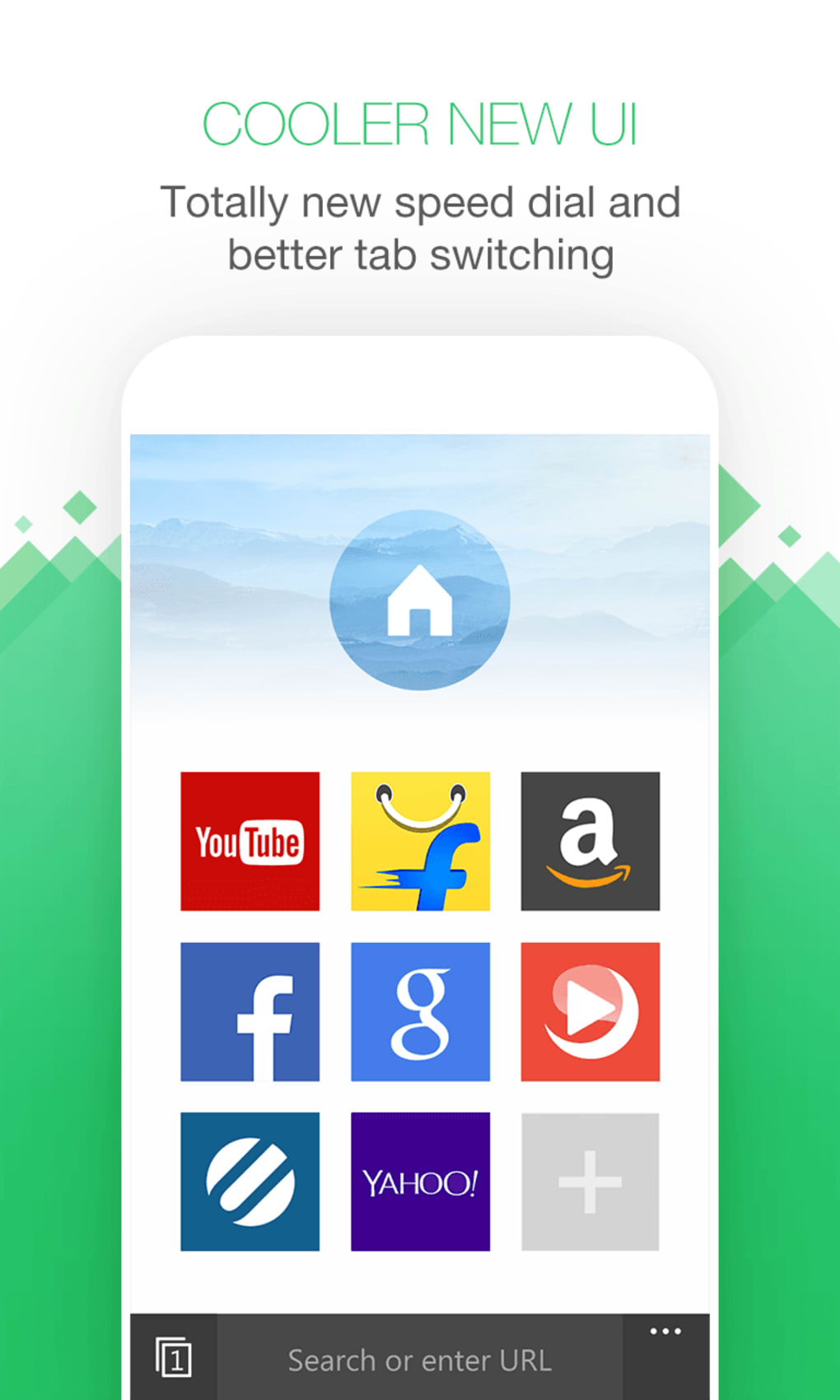
- Touch‑Friendly UI – Optimized for Tablet Mode with large, color‑coded tiles for bookmarks and a floating spherical navigator for quick tab switching.
- InPrivate Window – An incognito mode that leaves no trace of browsing history, cookies, or cached files.
- Cloud Sync – Seamlessly synchronize bookmarks, passwords, and open tabs across Windows devices and the mobile UC Browser app.
- Built‑In Ad‑Blocker – Blocks intrusive ads and trackers by default, with an easy‑to‑manage whitelist for sites you trust.
- Password Manager with PIN Protection – Store multiple login credentials securely; retrieve them with a custom PIN for fast form filling.
- Data‑Saving Engine – Compresses web pages on the fly to reduce bandwidth consumption, ideal for limited data plans.
- Video Bar & Smart Downloader – Detects streaming videos, lets you watch in picture‑in‑picture mode, and download clips with a single click.
- Mouse Gestures – Navigate, reload, or go back with simple right‑click or swipe gestures, speeding up everyday tasks.
- Security Suite – Real‑time protection against malicious URLs, phishing attempts, and known malware distribution sites.
Pros
- Lightweight footprint – runs smoothly on low‑end hardware.
- Ad‑free browsing out of the box.
- Robust privacy tools including InPrivate mode and password vault.
- Efficient data compression for slower connections.
- Intuitive touch UI for 2‑in‑1 devices.
Cons
- Lacks extensive extension ecosystem compared to Chrome/Firefox.
- Occasional compatibility issues with very complex web apps.
- Limited customization of the UI beyond the default theme.
- Cloud sync requires a UC account, which some users may find unnecessary.
UCBrowser UWP delivers a compelling mix of speed, security, and simplicity. While power users may miss a richer extension marketplace, the browser’s built‑in tools more than make up for it, especially for those who prioritize low resource usage and a clean, ad‑free experience.
Installation, Usage & Compatibility
Step‑By‑Step Installation Guide
Downloading and installing UCBrowser UWP is straightforward:
- Visit the official UCWeb download page or open the Microsoft Store on your Windows device.
- Search for “UCBrowser UWP” and click the Get button.
- The Store will handle the download and automatically install the app in a sandboxed UWP environment.
- Once installation completes, launch the browser from the Start menu or pin it to the taskbar for quick access.
The process requires a Microsoft account for Store purchases, but the browser itself is completely free. Updates are delivered automatically via the Store, ensuring you always have the latest security patches and feature improvements.
First‑Run Configuration
When you open UCBrowser UWP for the first time, you’ll be greeted with a quick setup wizard:
- Choose your preferred default search engine (UC’s own engine is pre‑selected, but you can switch to Google, Bing, or DuckDuckGo).
- Enable or disable the built‑in ad‑blocker and set your preferred level of content filtering.
- Create a UC account if you wish to sync bookmarks, passwords, and open tabs across devices. This step is optional; you can continue using the browser locally.
- Set up a PIN for the password manager to protect stored credentials.
After configuration, the main interface appears with the Omnibar at the top, a row of colored bookmark tiles, and the floating spherical navigator at the bottom right for quick tab management.
Usage Tips for Tablet and Desktop Modes
UCBrowser UWP intelligently detects whether you are in Tablet Mode or using a mouse/keyboard. In Tablet Mode, the UI expands the bookmark tiles, makes touch targets larger, and displays the floating navigator prominently. Switching back to Desktop Mode instantly collapses the tiles, re‑positions the navigator, and restores traditional mouse‑centric navigation. To manually toggle modes, go to Settings > Display > Tablet mode in Windows.
Compatibility
The browser is officially compatible with Windows 10 (version 1809 and later) and Windows 11. Because it is built on the Universal Windows Platform, it runs on a wide range of hardware, including low‑power Intel Celeron processors, AMD Ryzen chips, and ARM‑based devices such as the Surface Pro X. The app also supports high‑DPI displays and scales appropriately on 4K screens.
While UCBrowser UWP is not available for macOS, Android, or iOS directly, UCWeb provides companion apps for those platforms that can sync data with the Windows version via a UC cloud account.
Frequently Asked Questions (FAQ) & Final Thoughts
Is UCBrowser UWP completely free or does it contain hidden costs?
UCBrowser UWP is 100 % free to download and use. All core features—including the ad‑blocker, password manager, and cloud sync—are included at no charge. Optional premium services, such as advanced VPN integration, may be offered in the future, but the current version does not require any subscription.
How does the built‑in ad‑blocker differ from third‑party extensions?
The native ad‑blocker in UCBrowser UWP works at the browser level, filtering ads before the page renders. This approach reduces CPU usage compared to third‑party extensions that inject scripts after page load. Users can also manage block lists directly in the Settings menu without installing additional add‑ons.
Can I import bookmarks from Chrome or Firefox?
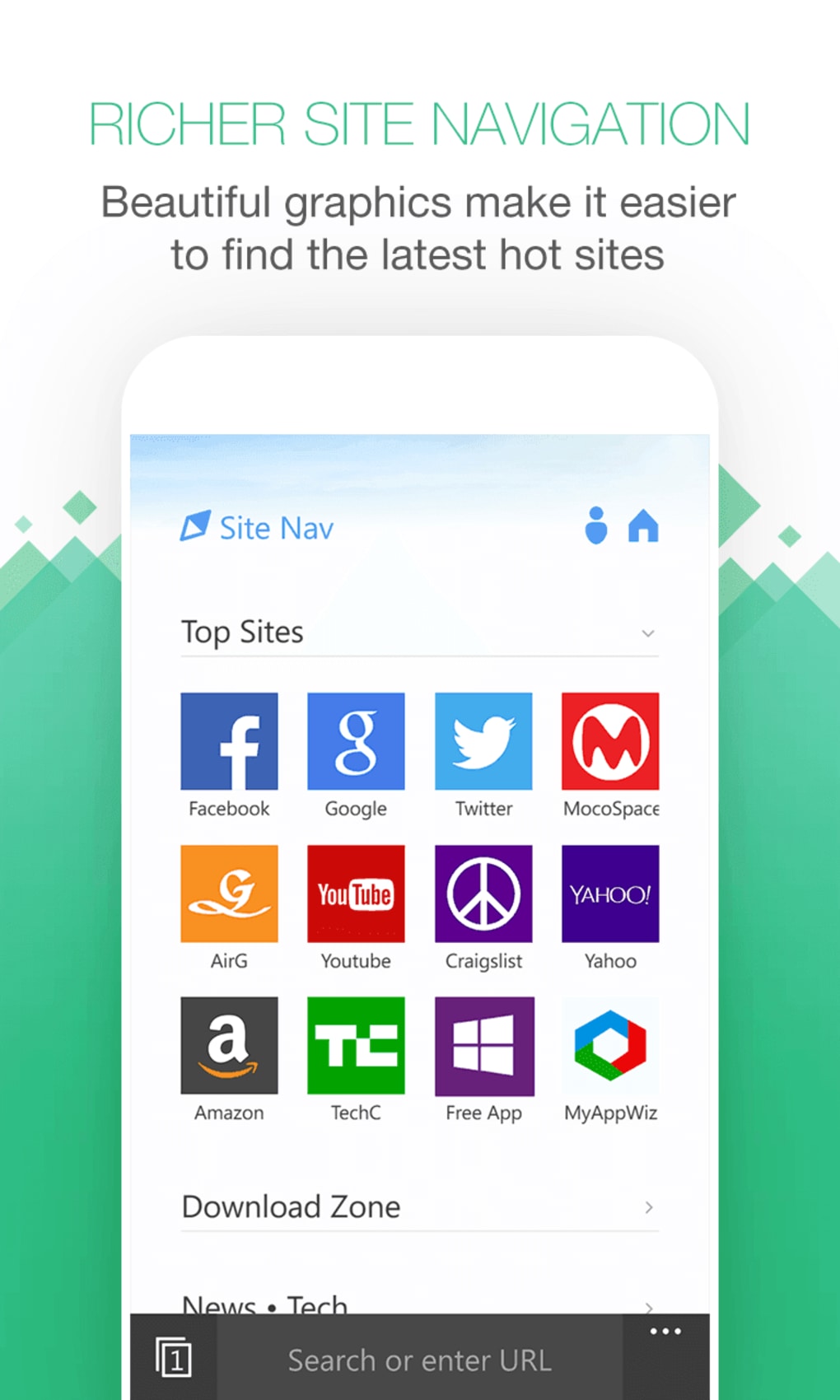
Yes. UCBrowser UWP provides an import wizard under Settings → Bookmarks. You can import HTML bookmark files exported from Chrome, Firefox, or Edge. Once imported, the bookmarks appear as colored tiles that can be rearranged or grouped into folders.
Does the password manager store data locally or in the cloud?
The password manager stores encrypted credentials locally on your device. If you enable cloud sync, the encrypted data is uploaded to UC’s secure servers, allowing you to access passwords across devices. The encryption key never leaves your device, and you must set a PIN to unlock the vault.
How does UCBrowser UWP handle video streaming and downloading?
When a video is detected on a page, a small Video Bar appears at the top, offering options to watch in picture‑in‑picture mode, save the stream, or open it in a new tab. The built‑in downloader respects the site’s terms of service and works with most major platforms, such as YouTube, Vimeo, and Dailymotion.
Conclusion – Should You Download UCBrowser UWP?
UCBrowser UWP delivers a well‑rounded browsing experience that balances speed, security, and simplicity. Its lightweight nature makes it ideal for older laptops, budget PCs, and 2‑in‑1 tablets where Chrome or Edge might feel sluggish. The ad‑free environment, built‑in password vault, and data‑saving compression are compelling reasons to give it a try, especially if you value privacy without the hassle of third‑party extensions.
If you need a massive extension ecosystem or deep developer tools, you might still prefer Chrome or Firefox. However, for everyday web surfing, streaming, and secure password management, UCBrowser UWP offers a compelling alternative that leaves a minimal footprint on system resources.
Ready to experience a faster, cleaner web? Download UCBrowser UWP now from the Microsoft Store and enjoy a secure, ad‑free browsing journey today.







